Using MDL
Adding custom MDL search paths
To use NVIDIA’s MDL
within Iray for 3ds Max, for MDL importing to work correctly you must specify the location on disk where the MDL
is stored. Do this via Rendering > Render Setup… > Settings > Materials > Custom MDL.
This is also true if the MDL that you are importing is based on other supporting MDL files (i.e. it includes other MDL
files). In this case, you need also to specify the path to the supporting MDL in the Custom MDL section.
- Open Rendering > Render Setup… > Settings and scroll to the Materials rollout.
- Under Custom MDL, select MDL Search Paths: > Add… and navigate to the folder
containing the required MDL.
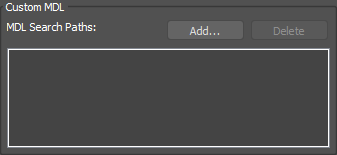
- Click OK and it will be added.
✱ Note: if your MDL does not reference full paths (including subfolders) then
you should add those subfolders to the Custom MDL search paths.
Importing MDL
Iray for 3ds Max maintains compatibility with other MDL-enabled applications.
To import MDL into 3ds Max:
- Open the 3ds Max Material Editor.
- Add an Iray+ Material from Materials > Iray+ in the Material/Map Browser.
- With the Iray+ Material selected, from the MDL rollout on the Material Detail panel, click
MDL I/O > Import…
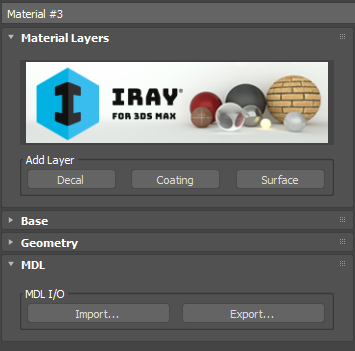
- Navigate to your MDL file in the file browser and click Open.
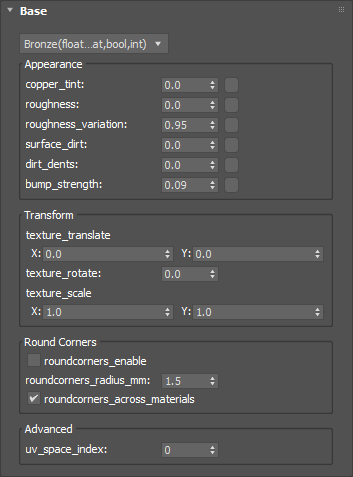
The imported file will expose any supported parameters included in the MDL
and you will be able to edit any enabled parameters:
✱
Note: re-importing MDL that you have exported previously from Iray for 3ds Max
may result in limited editing capability. If you want to save your materials to re-use in Iray for 3ds Max, save them in
3ds Max Material Libraries.
Supported Parameters for Editing
Imported MDL materials maintain their appearance but not all parameters can be edited once imported.
The following categories of MDL parameters are all editable once imported:
 color
 float3
 float2
 float
 bool
 int
 ::df::scatter_mode
 ::intensity_mode
 texture_2d
 texture_3d
 texture_cube
 texture_ptex
 light_profile
Exporting MDL
Exporting MDL involves a process similar to importing.
To export MDL from 3ds Max:
- Open the 3ds Max Material Editor.
- Select the material that you want to export.
- From the MDL rollout on the Material Detail panel, click MDL I/O > Export…
- Choose a location, name your MDL file in the file browser, and click Save.
✱
Note: when exporting an MDL material, the filename must conform to the MDL
syntax: it must begin with an alphabetic ASCII character [a-z, A-Z] and must consist only of alphabetic, numeric [0-9], or
underscore [_] characters. The filename also cannot be any of the reserved words of MDL itself. See the
language
specification document in NVIDIA’s
MDL Handbook for further details.
Resources
For detailed information on MDL, please refer to NVIDIA’s
MDL Handbook.
▲
Last edited: