
Documentation
Documentation
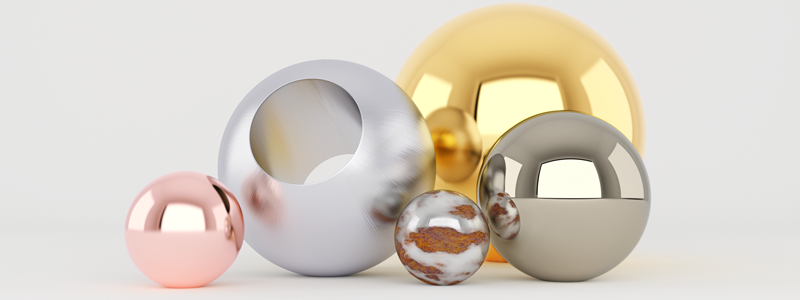
Iray+ Metal is a specialized material component that contains measured information about metals from which various metal types can be created using combinations of Surface and Coating layers. Because they use measured data, these are extremely accurate. If you want more control over the appearance of a metal material (at the expense of less physical accuracy), use Iray+ Material and choose one of the metal Base layer presets.
For examples, refer to the Iray+ Material Libraries page, under the section headed Metals.
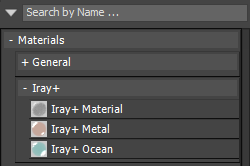
Iray+ Metal can be found in the 3ds Max Material Editor under Materials > Iray+:
The following sections describe the parameters and functionality available in this component.
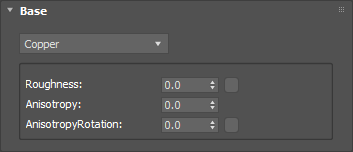
This component contains the following measured examples of metal:
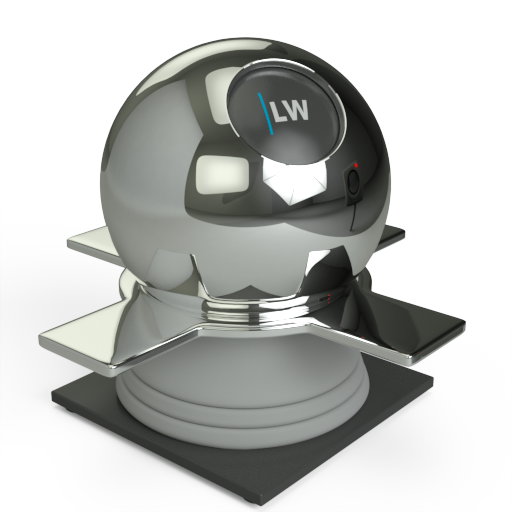
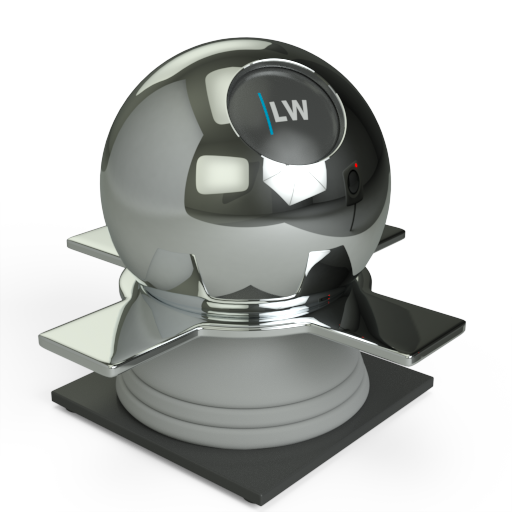
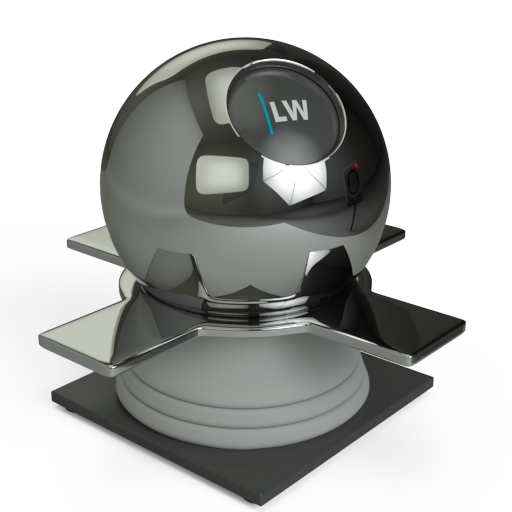
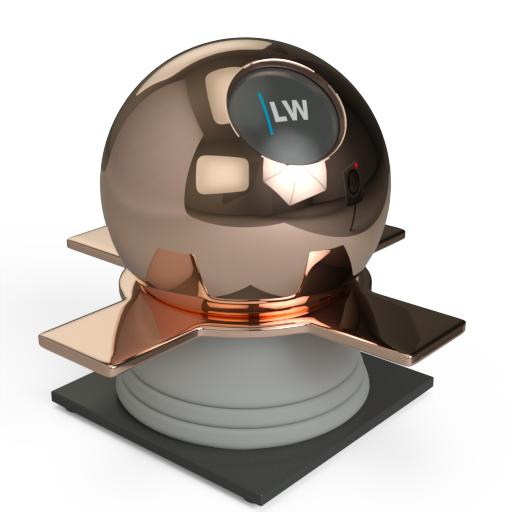
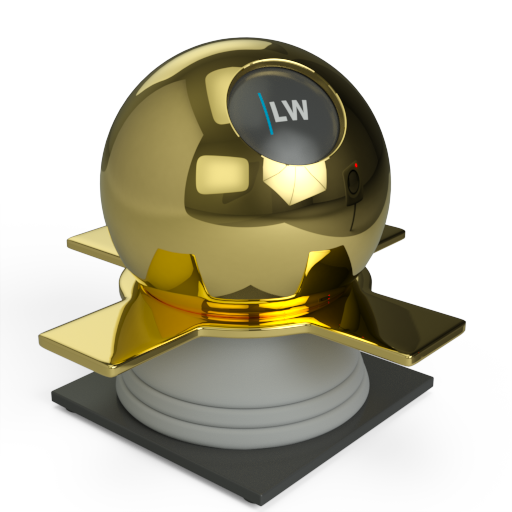
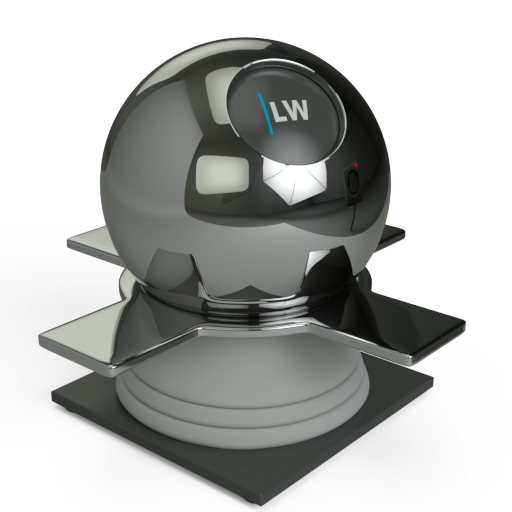
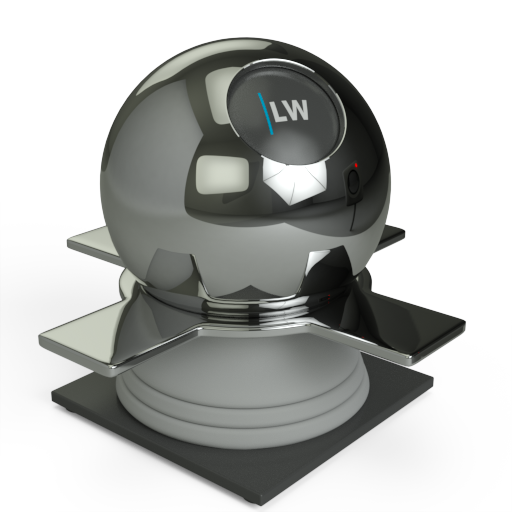
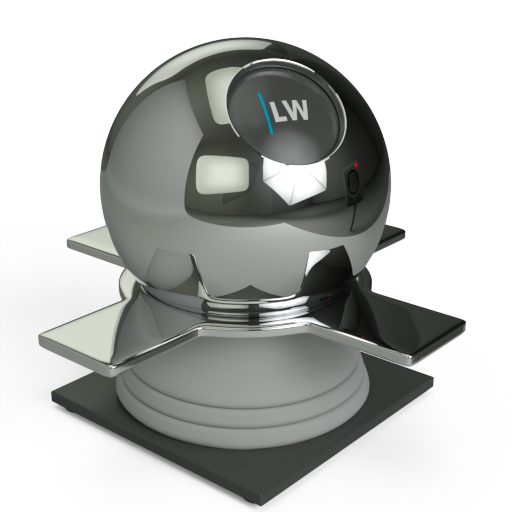
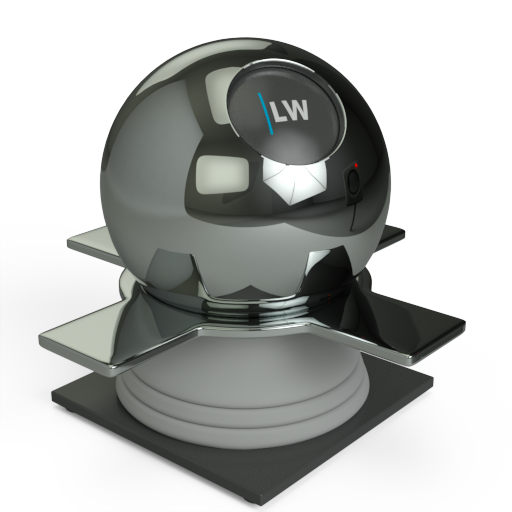
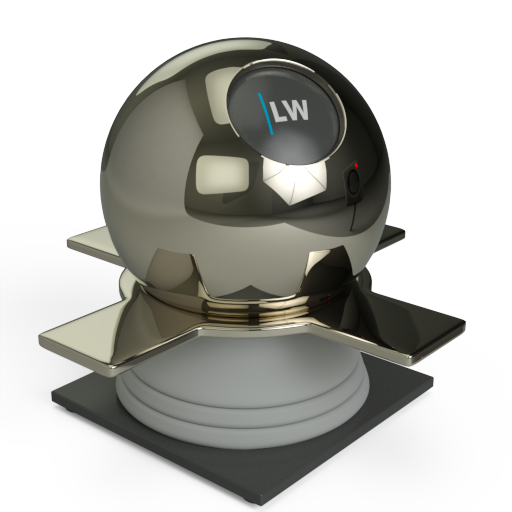
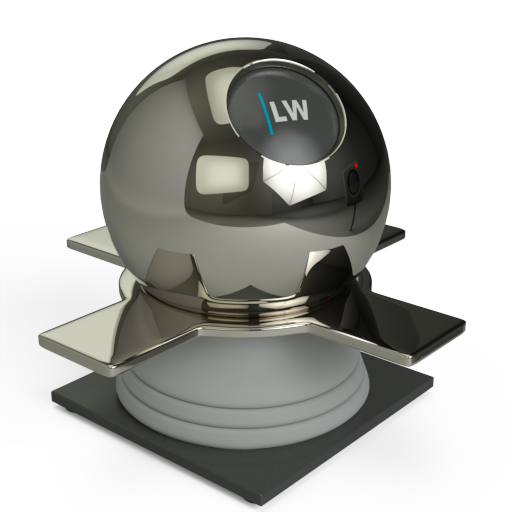
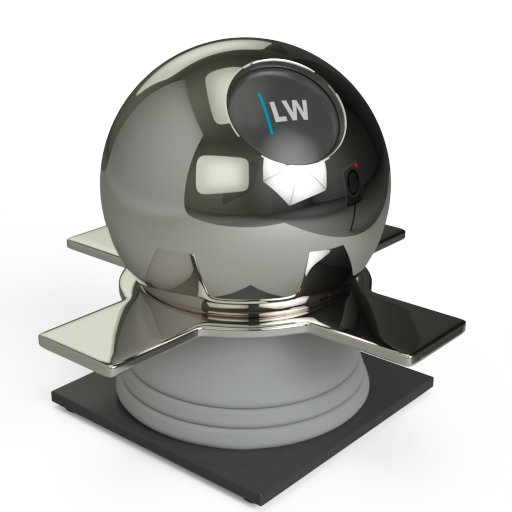
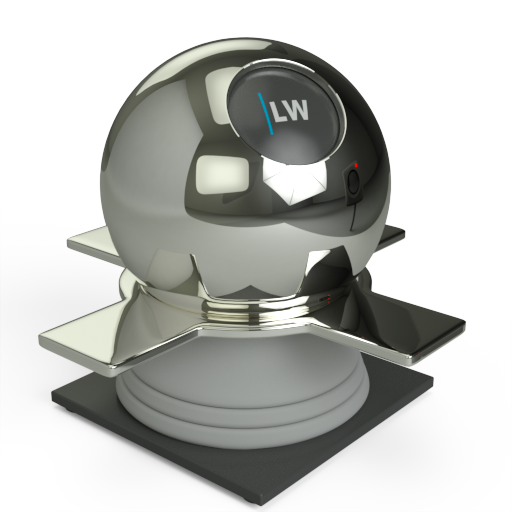
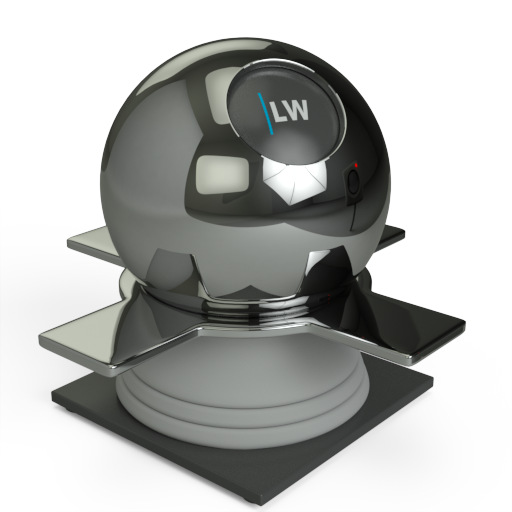
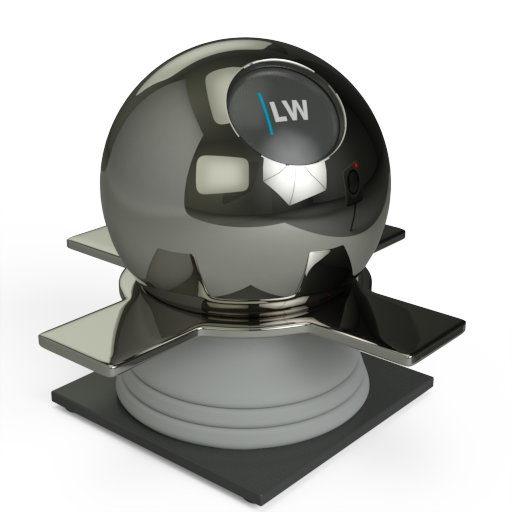
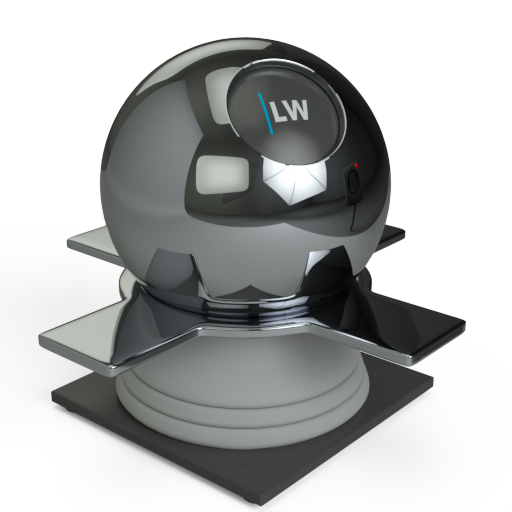
Click material thumbnail for larger view
Simulates the level of polish. Higher values will result in more blurred reflections.
Input: 0.0 – 1.0 or Map
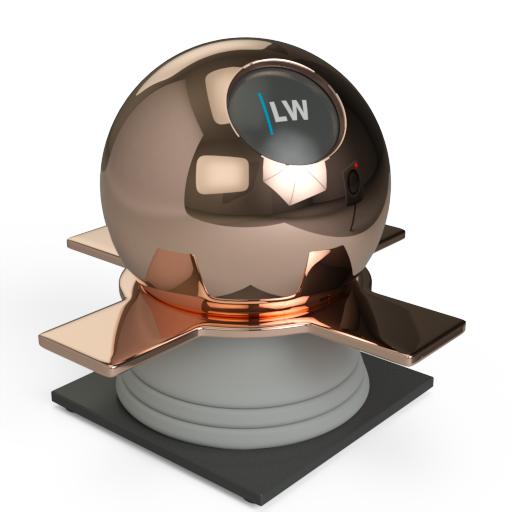
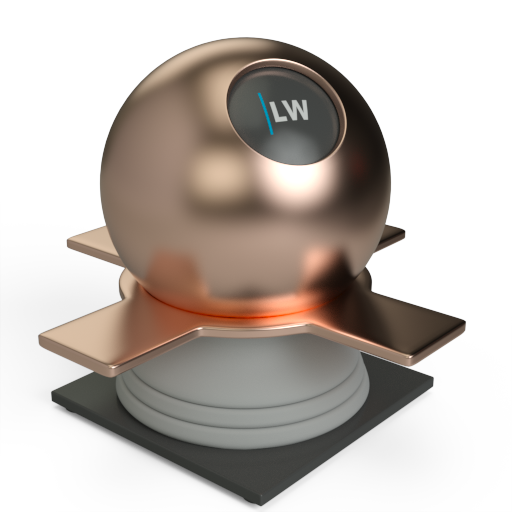
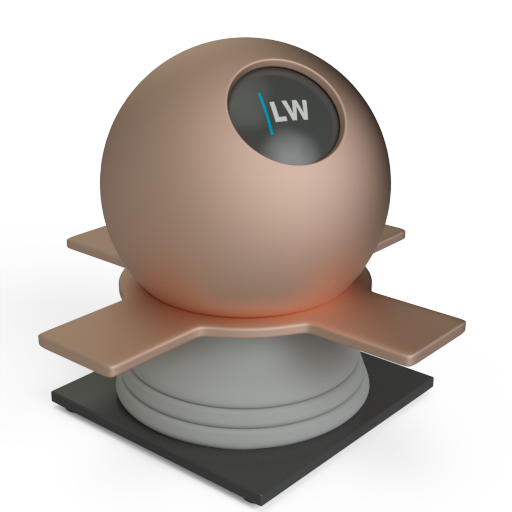
Click material thumbnail for larger view
Simulates the effect of reflections on brushed or machined surfaces where there are parallel scratches or grooves. Reflections tend to get stretched out in a direction orthogonal to the scratch direction. Higher values increase stretching. Anisotropy works in conjunction with the Roughness parameter.
Range: 0.0 – 1.0
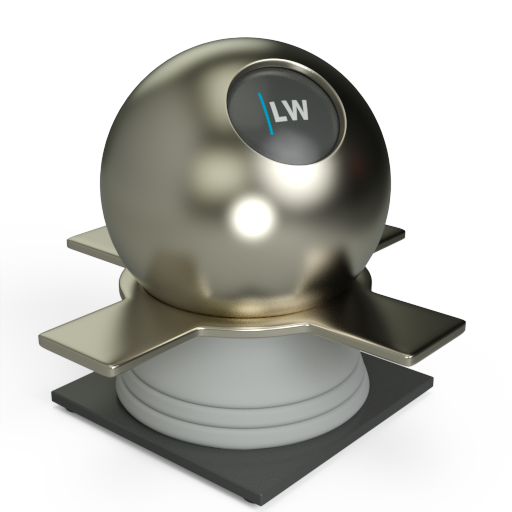
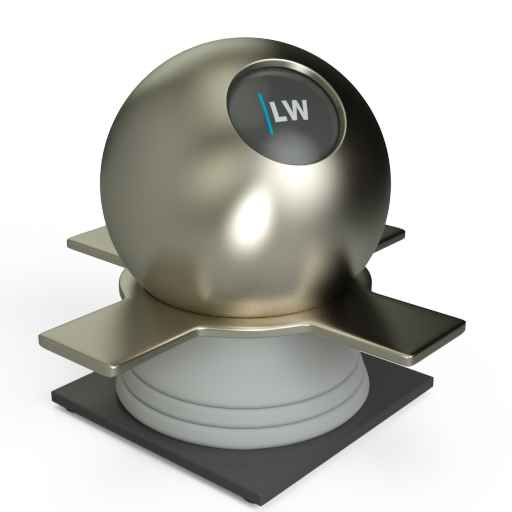
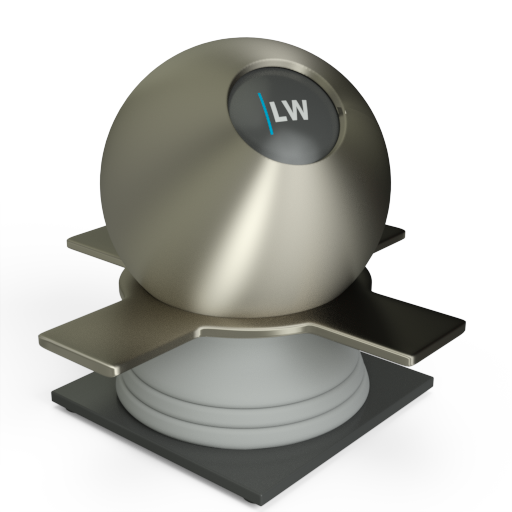
Click material thumbnail for larger view
Controls the direction in which the reflection is stretched, relative to the texture coordinate axis at that point. The range is 0.0 to 1.0, where 1.0 means 360˚, 0.25 means 90˚, etc. To work this out, simply multiply the value by 360. You can also apply a texture map, for example to get a circular brushed effect.
Input: 0.0 – 1.0 or Map
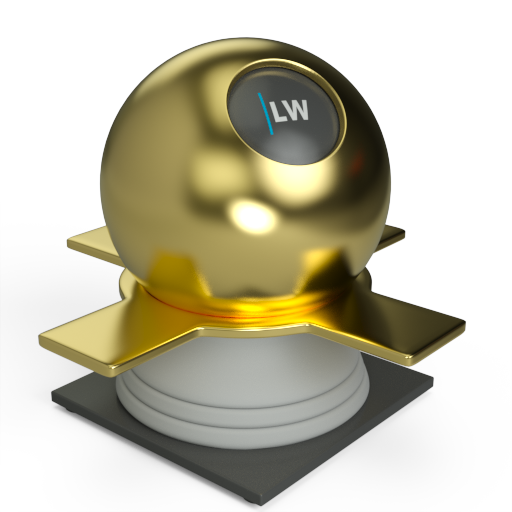
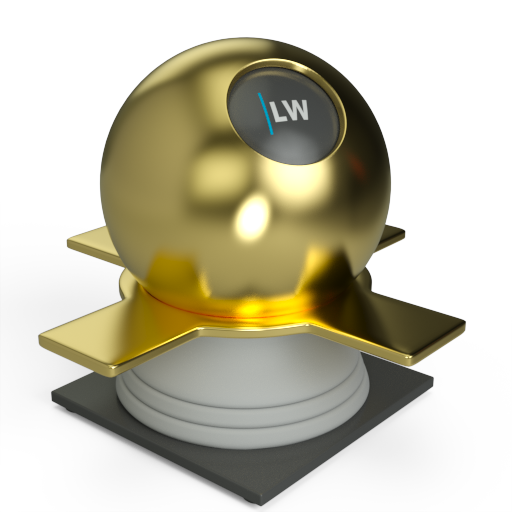
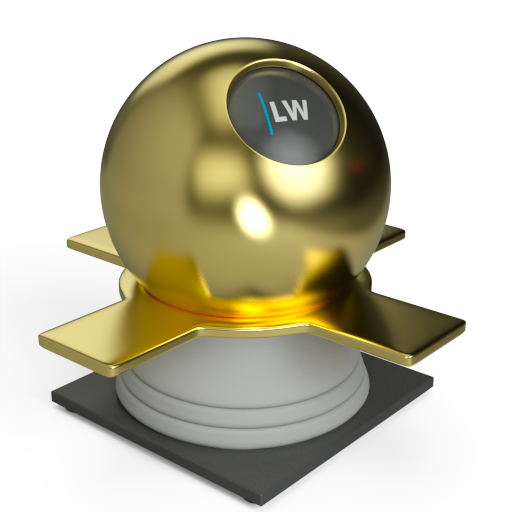
Click material thumbnail for larger view
▲Last edited: