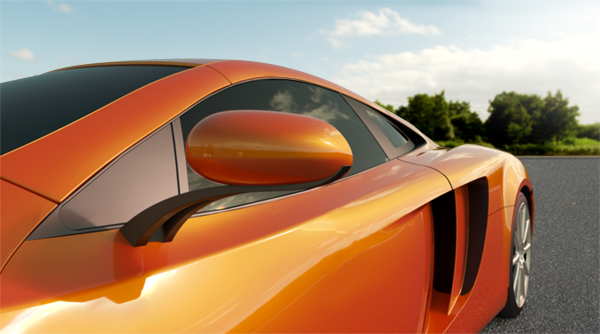
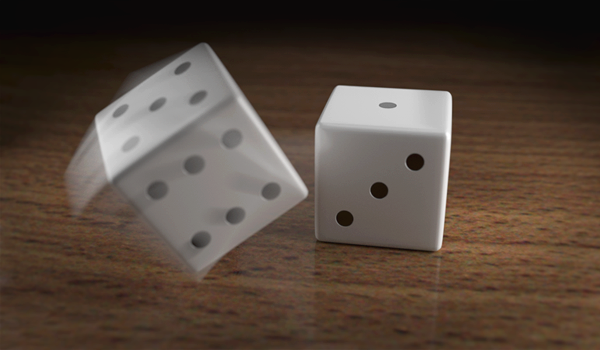
Iray for 3ds Max uses existing camera functionality in 3ds Max, and is compatible with all on-camera Multi-Pass Effects.
Iray for 3ds Max also adds an Iray-specific depth of field effect which is recommended for use in Iray scenes.
Add or select a Camera in your scene, and select the Modify panel.
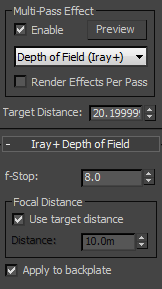
On the camera's Parameters rollout, under the Multi-Pass Effect group, select Depth of Field (Iray+).
Ensure that the Enable checkbox is ticked. If you have an ActiveShade Mode window open you will see
the effect and any changes made to the parameters.
✱ Note: a lower f-stop will result in a shallower (more blurred) effect;
a higher f-stop will result in a sharper image.
Depth of Field Parameters and Compatibility
Multi-Pass Effect:
Enable: toggles the chosen Multi-Pass Effect on or off.
Preview: not compatible with Iray; use ActiveShade to preview effect.
Multi-Pass Dropdown: gives choice over the Multi-Pass effect. Depth of Field (Iray+)
is recommended; however other depth of field effects will also work.
Render Effects Per Pass: not compatible with Iray as depth of field is created in the first pass.
Target Distance: sets the location of the camera's target, defining the focal point of the effect.
If you don't want to alter your camera's target then you can instead use the Distance parameter (see below).
Iray+ Depth of Field:
f-stop: adjusts the strength of the depth of field effect.
Focal Distance:
Use target distance: enable this checkbox if you are using a Target Camera and want the focal point
of your scene to be where your camera's target is positioned, as set via the above Target Distance parameter.
If unticked, Distance will be used instead.
Distance: for Free Cameras or manual control over focal distance in your scene, this will be used
if the Use target distance checkbox is unticked.
Apply to backplate: applies the depth of field effect to any backplate in your scene.