Getting Started
Before installing the plugin, please ensure that your system meets the
System Requirements.
Installing
To install Iray for 3ds Max:
- Open the Iray for 3ds Max installer.
- If you already have a version of the plugin installed, the installer will ask you whether to remove it first. It is
recommended that you uninstall any existing versions of the plugin.
- Select Next to start the installation progress and view the License Agreement.
- The installer will attempt to install to the Plugins directory of 3ds Max in the Program Files
directory. (e.g. C:\Program Files\Autodesk\3ds Max 202*\plugins).
- If the folder already exists, the installer will ask you to confirm that you would like to install to that directory.
- When installation is complete, select Finish.
Choosing Iray as your renderer
Iray for 3ds Max includes two renderers: Iray+ and Iray+ Interactive.
The Iray+ renderer delivers the best results and is a good choice for Production Rendering Mode.
The Iray+ Interactive renderer allows easier navigation with faster results and is a good choice as your
ActiveShade Mode renderer.
To choose Iray as your renderer:
- From the 3ds Max menu bar, select Rendering > Render Setup….
(Alternatively, click Render Setup on the main toolbar or press the F10 shortcut key.)
- On the Common tab, scroll down to the Assign Renderer rollout:

- From the Production dropdown, assign Iray+ or Iray+ Interactive.
- From the ActiveShade dropdown, assign Iray+ or Iray+ Interactive.
This will enable all Iray options within Render Setup and the Material Editor.
Ensuring material accuracy
Materials in Iray are designed with size accuracy in mind.
To ensure that materials display at an accurate scale:
- From the 3ds Max menu bar, select Customize > Preferences…
- On the General tab, ensure that the Use Real-World Texture Coordinates checkbox
is ticked.
- Select OK to confirm the change.
Downloading material libraries
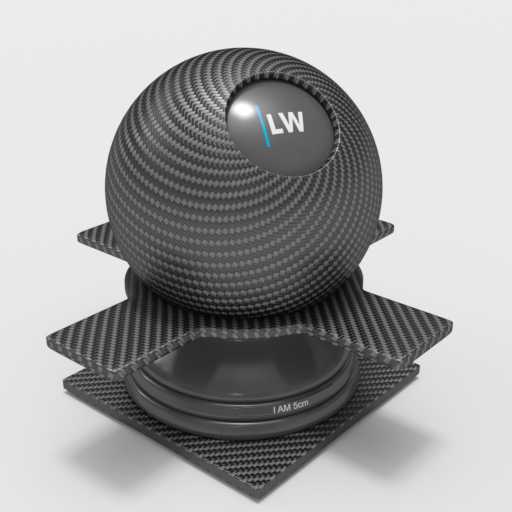
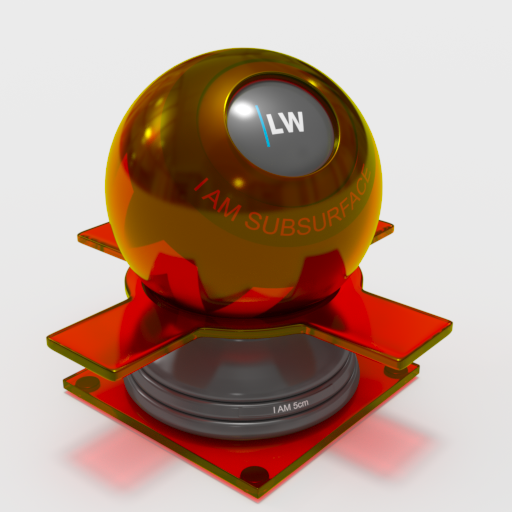
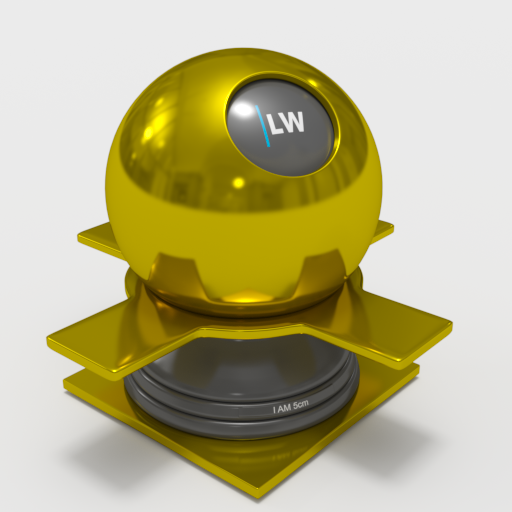
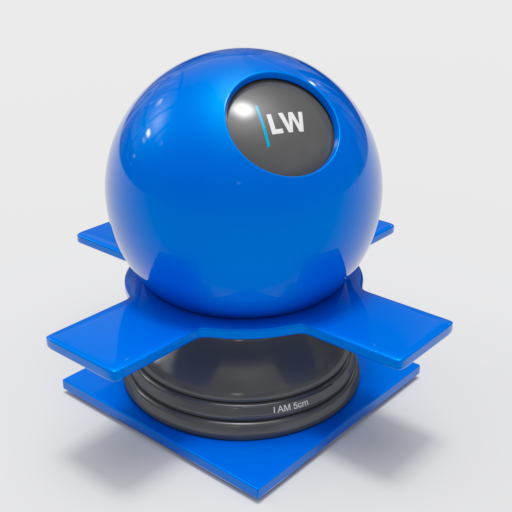
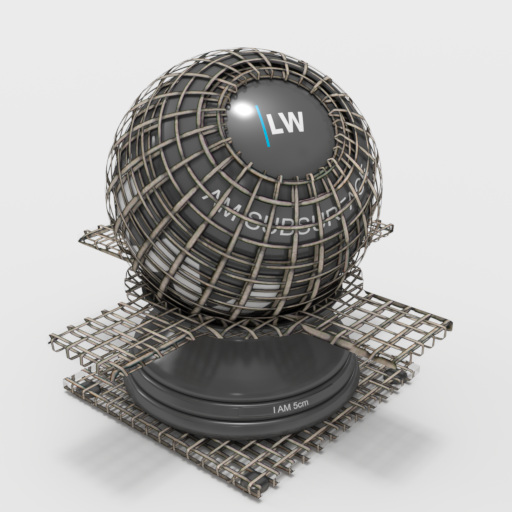
Iray for 3ds Max makes hundreds of materials available for use in your projects. For details, and to download, see the
Iray+ Material Libraries page.
▲
Next: Feature List
See Also:
Last edited: