
Documentation
Documentation
The Iray+ Perlin Noise map generates a pseudo-random pattern consisting of waves across the map. It is computed over several octaves which are added together for the final result. It has many uses but primarily it is used for generating procedural textures, shapes, terrain height maps and as the basis for texture effects.
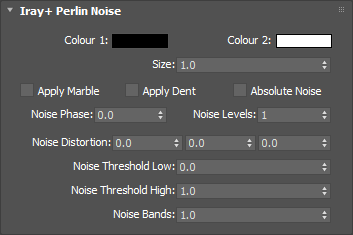
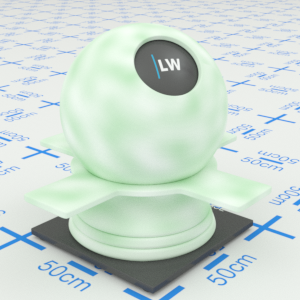
The noise blends between this color and Colour 2. This will have no effect if connected to a Normal/Bump parameter.
Input: Color
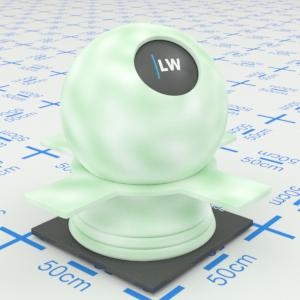
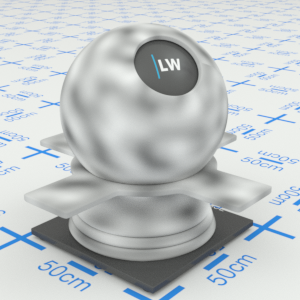
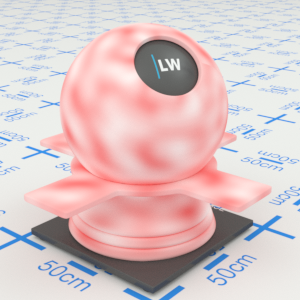
Click material thumbnail for larger view
The noise blends between this color and Colour 1. This will have no effect if connected to a Normal/Bump parameter.
Input: Color
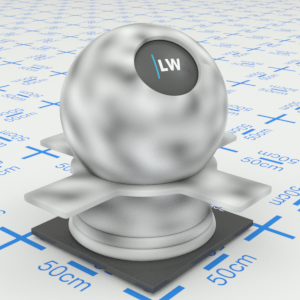
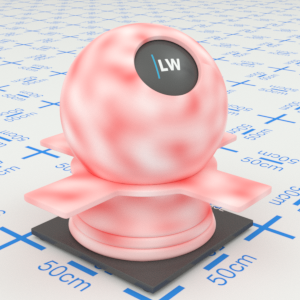
Click material thumbnail for larger view
Controls the size of features in the noise pattern.
Range: 0 – 1000
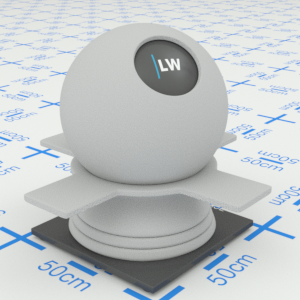
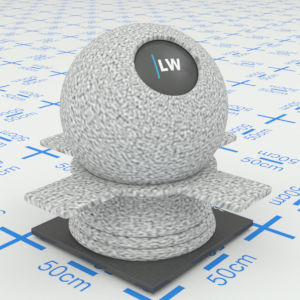
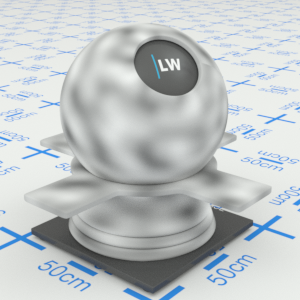
Click material thumbnail for larger view
Modifies the noise pattern with a marble appearance. Can be used in combination with Apply Dent and Absolute Noise for more complex effects.
Input: On/Off Checkbox
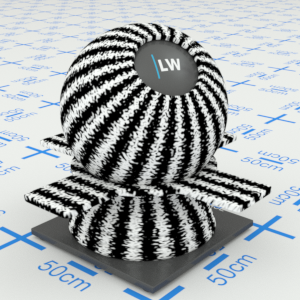
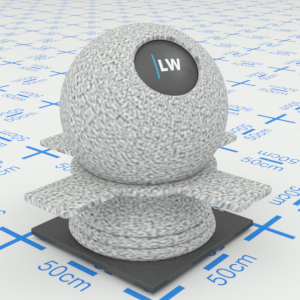
Click material thumbnail for larger view
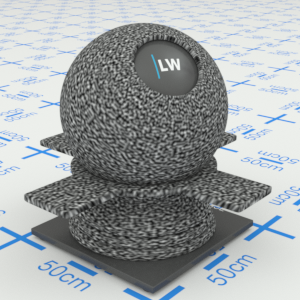
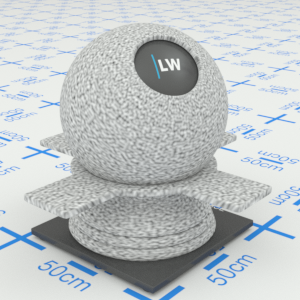
Intensifies the contrast between the colors but the pattern will stay the same. Can be used in combination with Apply Marble and Absolute Noise for more complex effects.
Input: On/Off Checkbox
Click material thumbnail for larger view
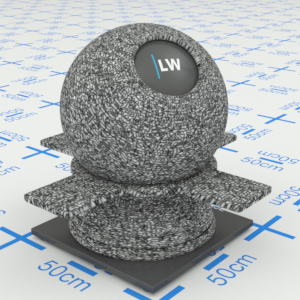
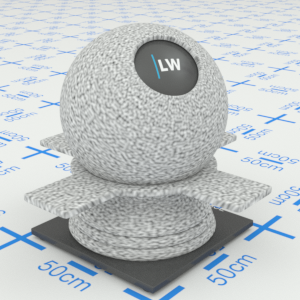
When enabled, the pattern will appear more billowing and turbulent. Can be used in combination with Apply Marble and Apply Dent for more complex effects.
Input: On/Off Checkbox
Click material thumbnail for larger view
This can be used as a time control, in conjunction with 3ds Max key frames, to simulate progression of the noise over time.
Range: 0 – ∞
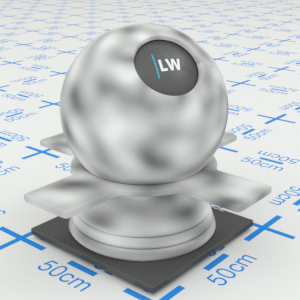
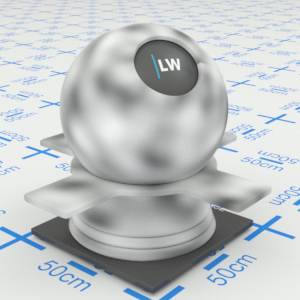
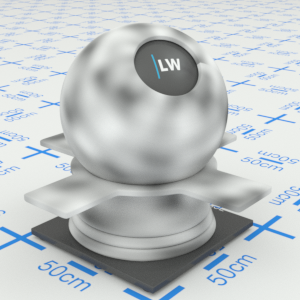
Click material thumbnail for larger view
Controls the number of additional noise functions (octaves) to sample.
Range: 0 – ∞
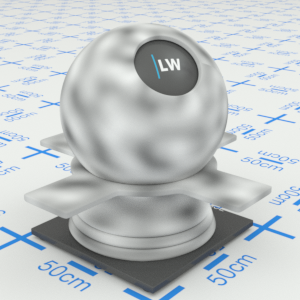
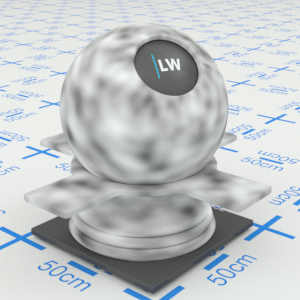
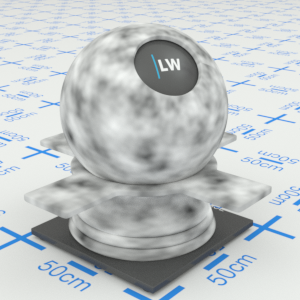
Click material thumbnail for larger view
Controls the weight of additional noise turbulence.
Range: 0 – ∞

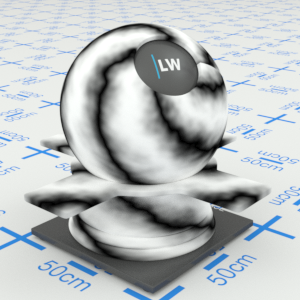
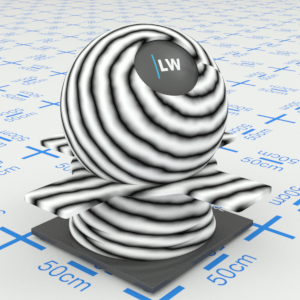
Click material thumbnail for larger view
Noise values greater than Noise Threshold Low are mapped to Colour 2.
Range: 0 – ∞
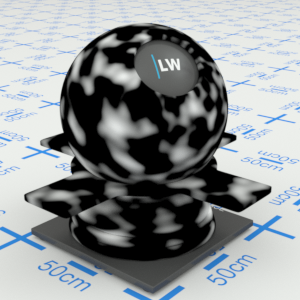

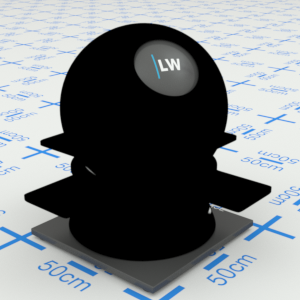
Click material thumbnail for larger view
Noise values greater than Noise Threshold High are mapped to Colour 1.
Range: 0 – ∞
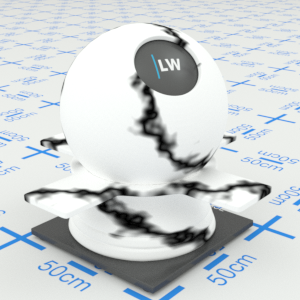

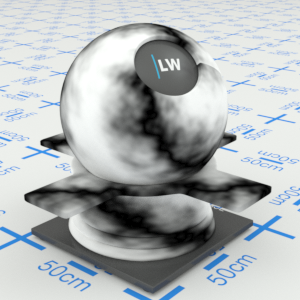
Click material thumbnail for larger view
Can be used to create a "tree ring"-like effect.
Range: 0 – ∞
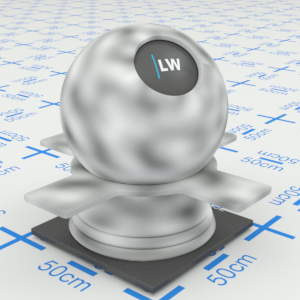
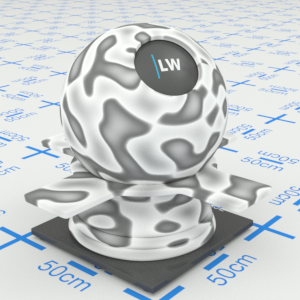
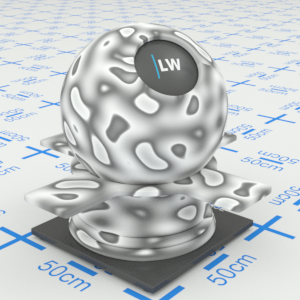
Click material thumbnail for larger view
Last edited: