The Iray Physical Sky system generates a physically accurate, high dynamic range sky dome around a scene so you can
create realistic stills and animations for any time of the day at any location in the world.
An alternative is to use an IBL light using your own HDRI.
Physically accurate lights in Iray for 3ds Max
Adding a Physical Sky
To add a Physical Sky system to your scene, from the dropdown on the Tool panel under Create > Lights,
select Iray+. On the Object Type rollout, select PhysSky:
➤
➤
➤
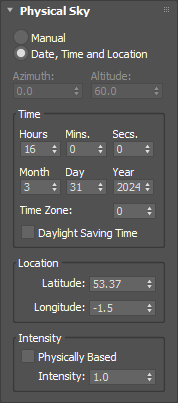
Physical Sky
Manual:
Azimuth: specifies the angle of the sun around the horizon, measured clockwise from North.
Altitude: specifies the elevation (in degrees) of the sun in the sky between the horizon and the
zenith (the point directly overhead).
Date, Time and Location:
Time: sets the time, date and time zone of your specified location, with the option to observe
Daylight Saving Time.
Location: sets the Latitude and Longitude of your specified location.
Intensity:
Physically Based: fixes the following parameters (see below) to physically accurate values:
Intensity, Haze, Glow, and Red-Blue Shift.
Intensity: controls the Physical Sky brightness. (Values other than 1.0 are not physically accurate.)
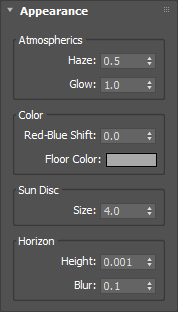
Appearance
Atmospherics:
Haze: simulates the effect of particulates in the atmosphere. Low values will give a clear sky; higher
values will increase the effect of light scattering.
Glow: affects the size and softness of the glow around the sun. A value of 0.0 will make the sun look
sharp. The higher the value, the larger and more blurred the sun disc will appear.
Color:
Red-Blue Shift: controls the appearance of red in the sky. This parameter can be used to create more
dramatic sunrises and sunsets.
Floor Color: controls the color appearance of the floor.
Sun Disc:
Size: controls the size of the sun disc. This does not affect the amount of light in the scene, only
the physical appearance of the sun.
Horizon:
Height: controls the height of the horizon line.
Blur: softens the horizon line and blends it with the sky.
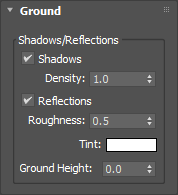
Ground
Shadows/Reflections:
Shadows: toggles shadow visibility on the ground plane of your environment on or off.
Density: controls the strength (darkness) of the shadow. The higher the value, the darker the shadow.
Reflections: toggles the display of reflections on the ground plane of your environment on or off.
Roughness: controls the strength of reflections in the ground plane. The range is from 0 to
10,000,000: a value of 0 gives diffuse reflections; a value 10,000,000 gives perfect mirror reflections;
values in between give varying degrees of glossiness.
✱ Note: the
Iray+ Interactive
renderer does not display varying degrees of glossiness. In general, glossiness will not be displayed except
for Roughness values greater than 20,000, when a perfect mirror is used.
Tint: adds an optional color tint to the reflection.
Ground Height: defines where the ground plane is in your scene. Change this if the base of your model
is not sitting on the ground plane correctly.
✱ Note: Iray allows one Physical Sky system or
IBL instance to contribute to lighting at one time.
However, you can add and keep as many inside your scene as you require. To choose the active environment,
use the Active Environment option on the
Settings tab.

 ➤
➤
 ➤
➤
 ➤
➤